How to reduce photo size in KB
Open Compress image, add the photo, choose Under a size, type the limit in KB and press Compress. You get the sharpest copy that fits, in a few seconds, and the photo never leaves your phone or computer.
The quick way, step by step
These screenshots are from a phone. It works the same way on a laptop.
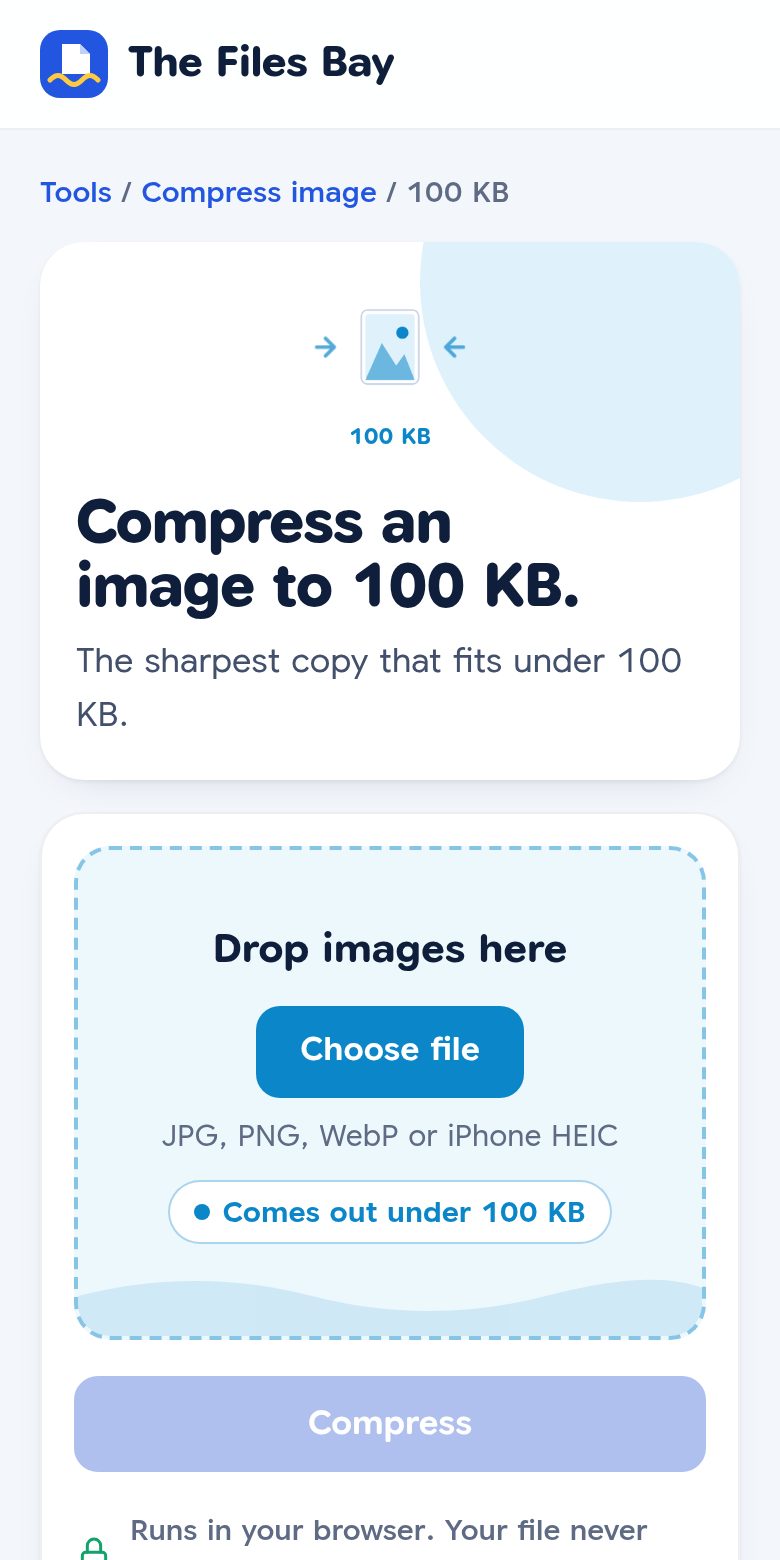
- Open the tool for your limit. Pick the size your form asks for: 20 KB, 50 KB, 100 KB or 200 KB. For any other number, open Compress image, choose Under a size and type it.
- Add your photo. Tap Choose file and pick it from your gallery, or drag it onto the box on a laptop. JPG, PNG, WebP and iPhone HEIC photos all work.
- Press Compress. The smaller copy downloads by itself. Your original photo stays as it was.
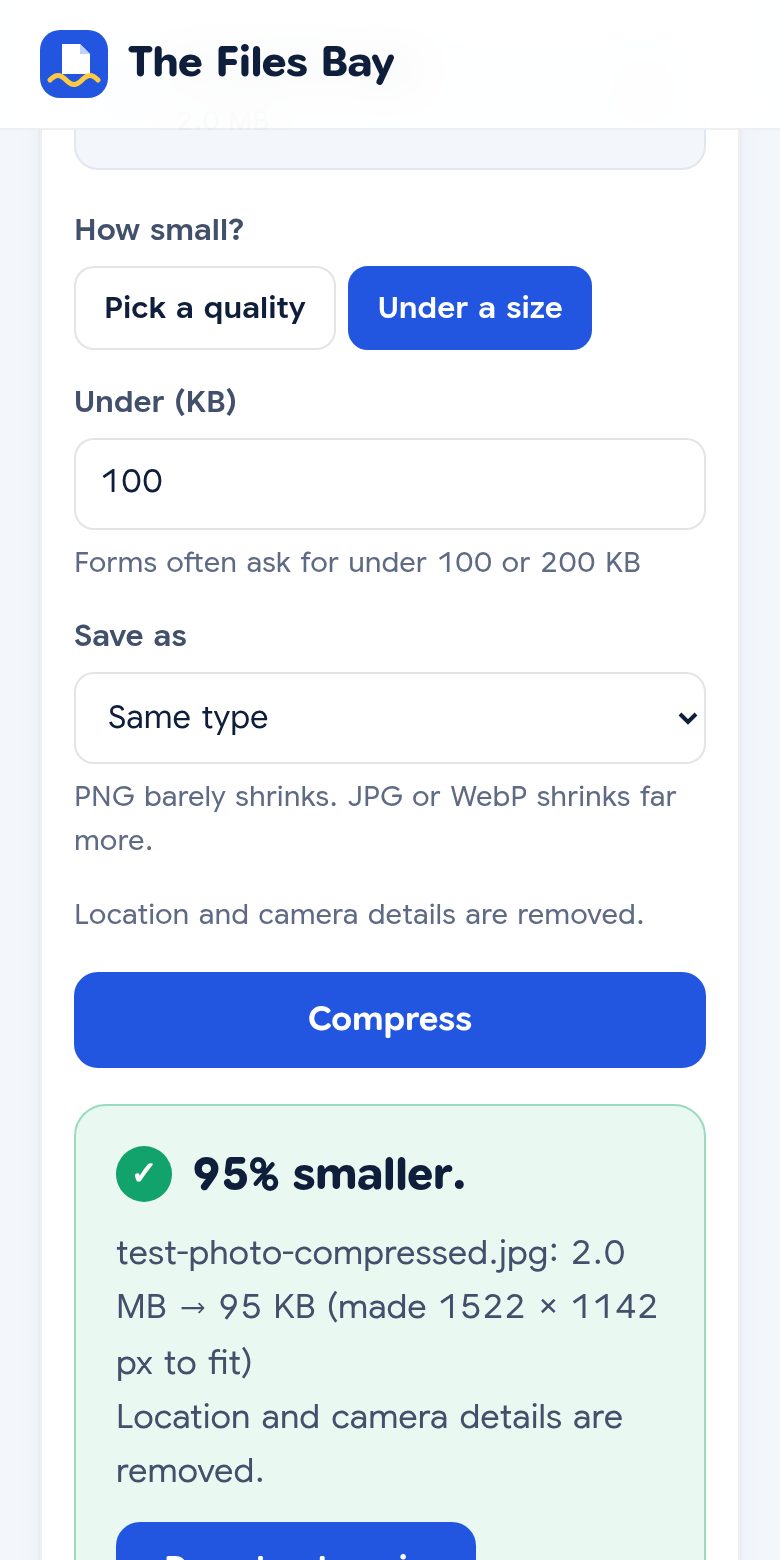
Tip: if the form only accepts JPG, set Save as to JPG. That also matters for PNG pictures and screenshots, which barely shrink as PNG.
What the result looks like
We tested with a 12-megapixel picture (4000 × 3000 pixels, 2.0 MB), the size a phone camera takes. It's a made-up landscape, not a real person.
| Limit | File we got | Pixel size | How it looks |
|---|---|---|---|
| 200 KB | 193 KB | 2308 × 1731 | Same as the original |
| 100 KB | 95 KB | 1522 × 1142 | Same on screen |
| 50 KB | 48 KB | 1006 × 755 | A little softer when zoomed in |
| 20 KB | 18 KB | 585 × 439 | Softer; fine for a small form photo |
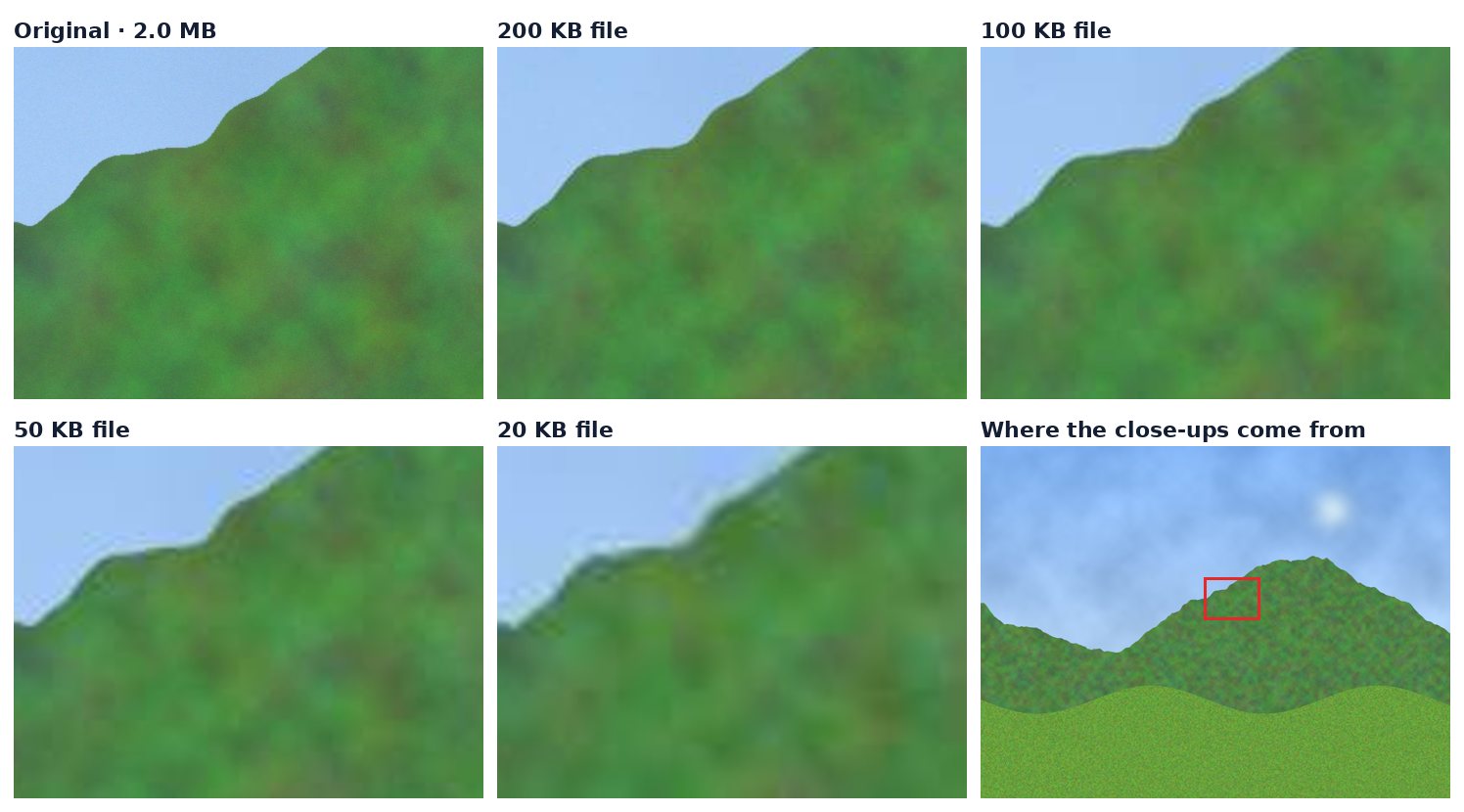
How it works: the tool first saves the photo more tightly. If that isn't enough, it also makes the photo smaller in pixels, just enough to fit, and tells you the new size.
If the form also asks for a pixel size
Some forms want both, like "200 × 230 pixels, under 50 KB". Do it in two steps:
- Use Crop image to cut the photo to the right shape, or Resize image and type the width and height.
- Then compress the resized photo to the KB limit. A photo that's already small in pixels usually fits under the limit with no loss at all.
On a laptop, without any website
Your computer can make a photo smaller, but it can't aim for a KB number. You try a setting, check the size, and try again.
- Windows: open the photo in Paint, choose Resize, lower the percentage (try 30%), then Save as → JPEG picture. Check the size with right-click → Properties.
- Mac: open the photo in Preview, choose File → Export, pick JPEG and drag the Quality slider. Preview shows the file size as you drag.
On phones there is usually no built-in way to pick a size in KB, so a browser tool is the easiest route.
Why a photo "under 100 KB" is sometimes still rejected
Some websites count 1 KB as 1,000 bytes, and others as 1,024 bytes. So a file of 101,000 bytes passes on one website and fails on another. Our tool aims under 100,000 bytes for a 100 KB limit, so the photo passes either way. In our test it came out at 97,690 bytes.
A form can also say no because of the file type (it may want JPG, not PNG or HEIC), or because the photo is smaller than a minimum size. Read the form's rules for both.
Is it safe for personal photos?
Yes. The photo is made smaller inside your browser, so your ID photo or signature stays on your own device. The tool also removes location and camera details from the copy it makes.
Questions
How do I reduce a photo to 50 KB?
Open Compress image to 50 KB on thefilesbay.com, add the photo and press Compress. The limit is already set. In our test, a 2.0 MB photo came out at 48 KB.
Will the photo look worse?
At 100 or 200 KB, a photo looks the same on screen. At 20–50 KB it gets softer when you zoom in, because it has to be made smaller in pixels too. For a form photo that is usually fine.
Does it work on iPhone and Android?
Yes. It works in the phone's browser, like Safari or Chrome. No app to install.
Is my photo uploaded anywhere?
No. The photo is made smaller inside your browser, on your own device. It is never sent to us or anyone else.