How to compress a PDF to 200 KB
Open Compress PDF to 200 KB, add your PDF and press Compress PDF. You get the sharpest copy that fits under 200 KB, usually in a few seconds, and the file never leaves your phone or computer.
The quick way, step by step
These screenshots are from a phone. It works the same way on a laptop.
- Open the tool. Go to thefilesbay.com/compress-pdf-to-200kb. The size is already set to 200 KB, so there is nothing to change.
- Add your PDF. Tap Choose file and pick the PDF from your phone, or drag it onto the box on a laptop.
- Press Compress PDF. In a few seconds you get a new copy under 200 KB, and it downloads by itself. Your original file stays as it was.
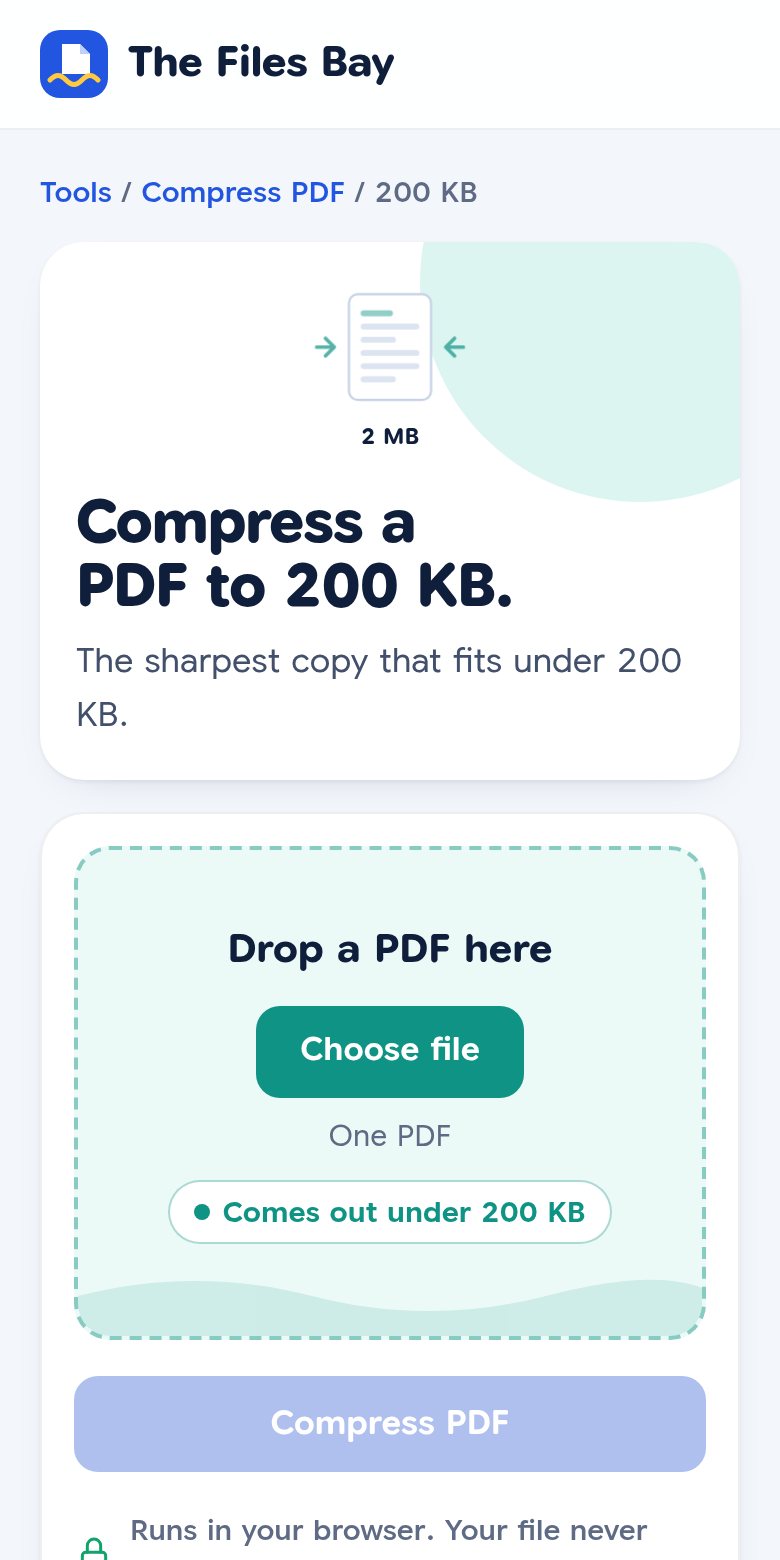
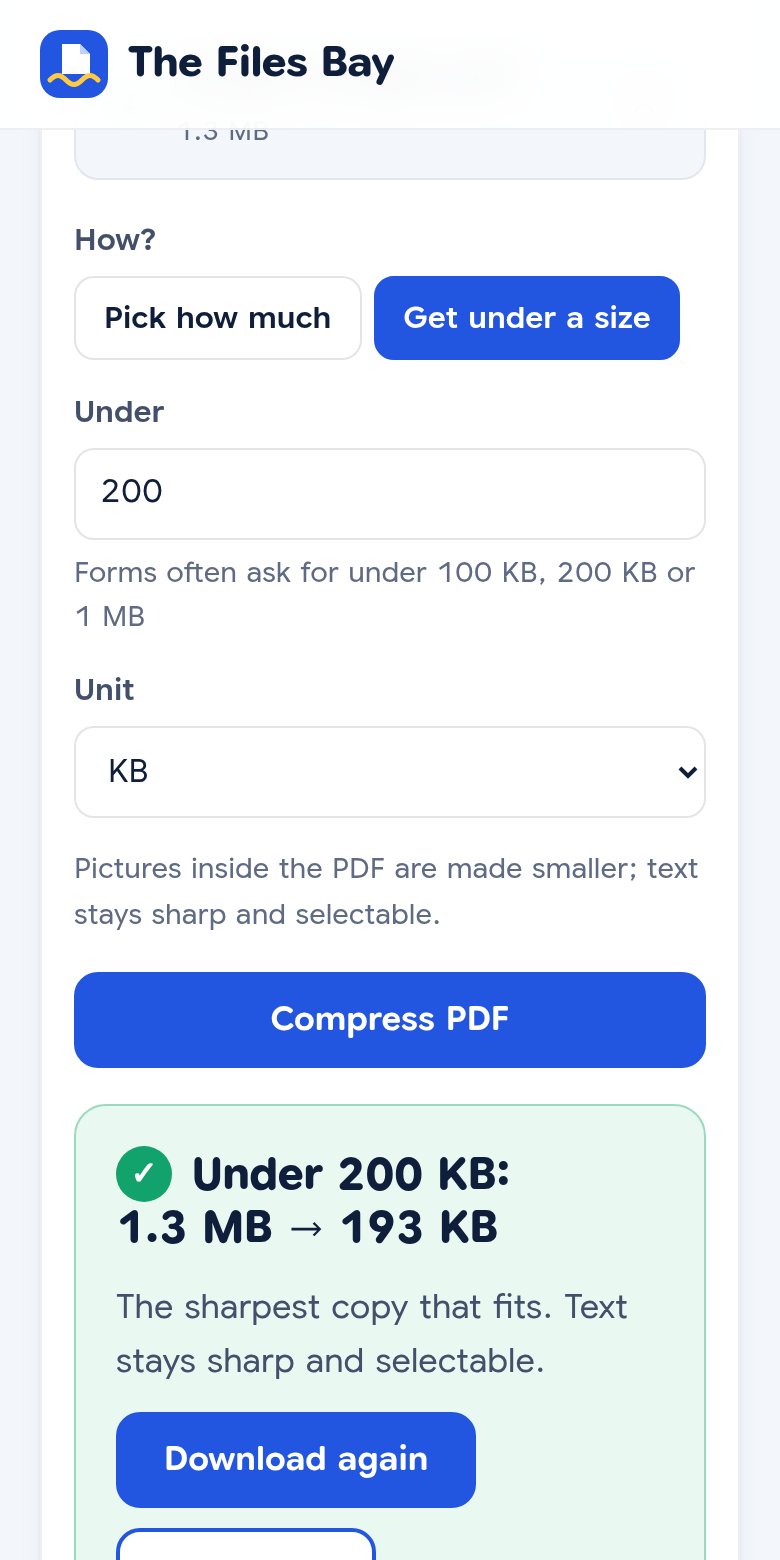
Need a different limit? Change the number in the Under box, or pick another size: 100 KB, 300 KB, 500 KB or 1 MB.
What the result looks like
We tested it on a 3-page sample document made to look like a phone scan, with text, a table, a signature and a stamp. None of it is real personal data.
| File size | Pages | Text readable? | |
|---|---|---|---|
| Original scan | 1.3 MB | 3 | Yes |
| Compressed to fit 200 KB | 192 KB | 3 | Yes, slightly softer |
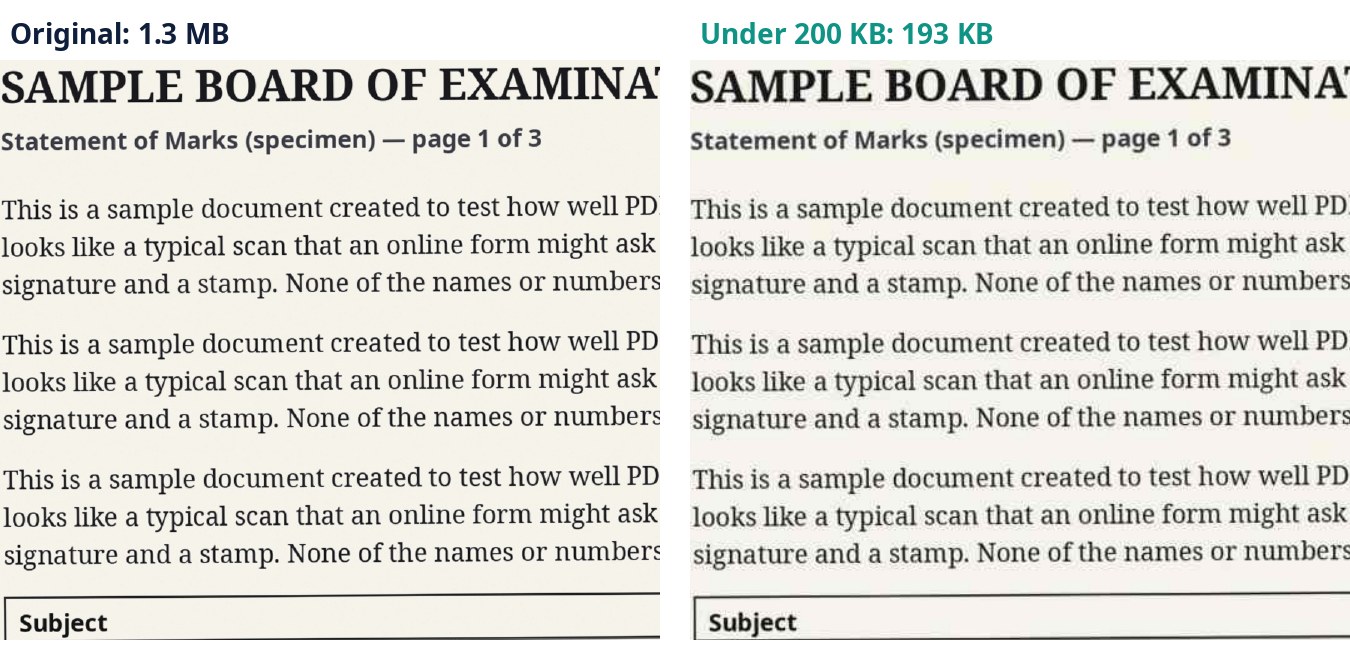
To get that small, each page is saved as a compressed picture. So you can't select or copy the text in the smaller copy. For an upload form that doesn't matter, but keep your original in case you need it later.
On a laptop or computer
The steps are the same. Open the tool in Chrome, Edge, Firefox or Safari, drag your PDF onto the box, and press Compress PDF. The smaller copy is saved in your Downloads folder, named like your file with -smaller at the end.
If it won't go under 200 KB
If the file is too big to fit, the tool says so and gives you the smallest copy it could make. That usually happens for one of these reasons:
- Too many pages. Every page needs some space. A 20-page scan won't fit in 200 KB and still be readable. Upload only the pages the form asks for: take them out with Split PDF, then compress.
- Colour photos on the pages. Colour takes far more space than black text. If the form accepts it, make the PDF black and white first, then compress.
- Very high-resolution scans. Scanning again at a normal setting (150–200 dpi) often helps more than squeezing a huge scan.
Tip: if a form asks for one document per upload, make separate PDFs rather than one big file. Each one then gets the full 200 KB.
Check the size before you upload
- iPhone: in the Files app, touch and hold the PDF, then tap Get Info.
- Android: in your Files app, open the file's menu (⋮) and choose Info or Details. The name varies by phone.
- Windows: right-click the file and choose Properties.
- Mac: right-click the file and choose Get Info.
Why a “200 KB” file is sometimes still rejected
Some websites count 1 KB as 1,000 bytes and others as 1,024 bytes. So a file of 204,000 bytes is “under 200 KB” on one website and “over 200 KB” on another. Our tool aims for under 200,000 bytes, so the file passes either way.
If a form still refuses the file, check what type it wants. Some ask for a JPG picture instead of a PDF. Then use PDF to JPG, and if the picture is too big, compress the image to 200 KB.
Is it safe for personal documents?
Yes. Most online PDF tools upload your file to their servers to process it. This one doesn't. The compression runs inside your browser, so your mark sheet, ID or bank statement stays on your own device the whole time. In our test it even kept working with the internet switched off after the page had loaded.
Questions
Is it free?
Yes. There is no sign-up, no daily limit and no watermark.
Does it work on an iPhone or Android phone?
Yes. It works in the phone's browser (Safari or Chrome). You don't need to install an app.
Will my document look worse?
A little softer, because the pages are saved as compressed images. In our test, a 1.3 MB scan came down to 192 KB and all the text stayed easy to read. Keep your original too.
Is my PDF uploaded anywhere?
No. The compression happens inside your browser, on your own device. The file is never sent to us or anyone else.